Desk painThe Top 5 Reasons Desk Workers Are in Pain, and the Fix for Each
Most desk pain starts within five feet of your chair: the height, the recline, the mouse, the keyboard and the reach. Here's each one, how to spot it, and what fixes it.

By AJ Prince, HEAS
Healthcare Ergonomic Assessment Specialist. Updated 22 Apr 2026. A 15-minute read.
Desk Doctor earns a commission on some links, at no cost to you. It never changes a score. How we make money
Most people who come to me in pain have already tried the obvious things. They've stretched. They've taken ibuprofen. Some have done physical therapy. Almost none of them have looked at the five feet around their chair, which is usually where the problem started, and where it keeps going every working day.
No single setup works for everyone. A 5'2" person and a 6'4" person at the same desk are dealing with two different problems. These are the five setup errors I see most, what right looks like for each, and the products that do the most to get you there.
Start with the one that matches your pain. If one body part is the problem, the five dedicated guides further down go deeper.
Cause 1 of 5
Your desk and chair are at the wrong height
This is the most common error I find, and the one with the most knock-on effects. Get the height wrong and you get a lower back that aches more as the day goes on, hips that complain when you stand up, and upper back tension that builds into afternoon headaches. Most people blame stress for those. Often it's the height.
Right looks like this: upper arms hanging at your sides, elbows bent 90 to 120 degrees with your hands on the keys, thighs roughly level and feet flat on the floor or a footrest.1 If your feet dangle, the seat is too high for your floor, which leaves your legs unsupported.2 If your shoulders creep up while you type, the surface is too high for your elbows: in a prospective study of computer users, typing with the elbows below the keyboard's home row went with more neck and shoulder problems.3
A standard fixed desk sits at about 29 inches. By the assessment's body model, a 5'4" person needs the keyboard about 3 inches lower than that, and a 5'0" person about 4.5.
The fix
Set the keyboard to your elbows first, then bring the floor up to your feet. A sit-stand desk sets the surface for both sitting and standing; a keyboard tray (Cause 5) does it for the keyboard alone; a footrest fixes the feet when the chair has to go up.
The desk most people need
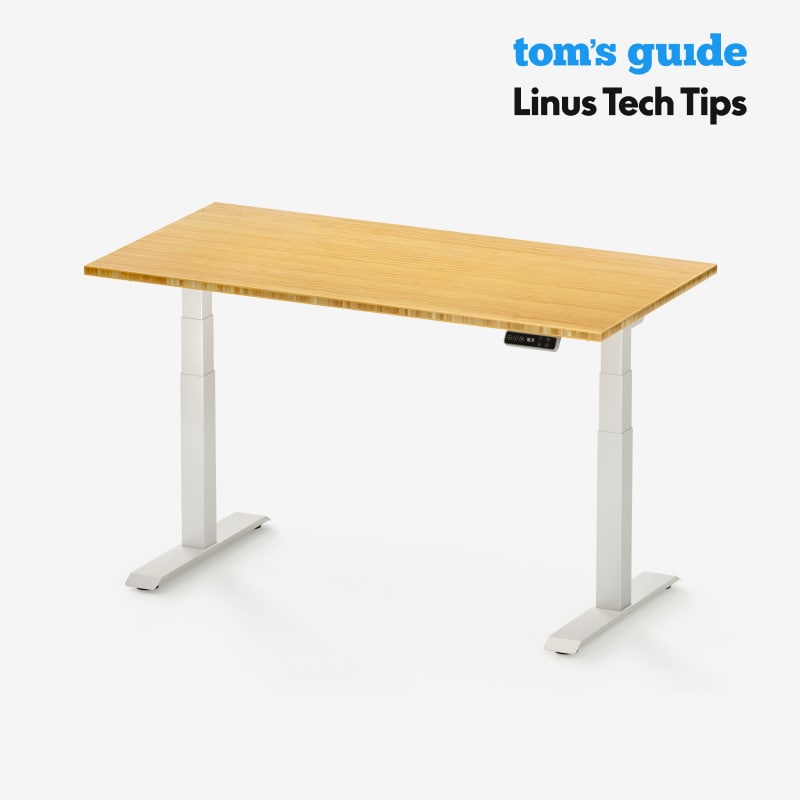
FlexiSpot E7
DEAS 8.3 out of 10
Two legs, dual motors; 22.8 to 48.4 inches without the top; 355-pound static load. 15-year warranty.
A sit-stand desk lets you set the surface to your elbows, sitting and standing. This is the one I put most people at: its range covers nearly everyone from about 5'0" to 6'4", it's steady for a two-leg frame, and it scores a tenth behind the 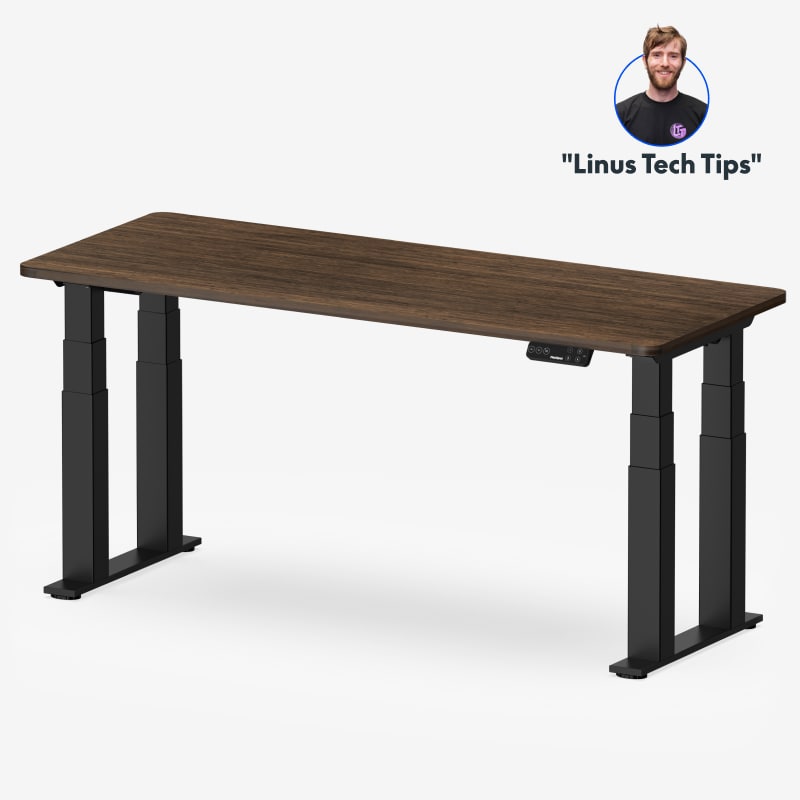 E7 Plus for less money.
Good: the widest fit of any desk we've scored; near-top stability; a strong price score; a strong reliability score from user reviews; a 15-year warranty. Less good: a two-leg frame sways a little more at full height than the four-leg E7 Plus; no third-party certification listed.
Score breakdown
Clinical performance8.2
I.1Neutral posture support8.5
I.2Adjustability range8.2
I.3Injury risk reduction8.2
I.4Population accommodation7.8
I.5Height range and stability8.5
Product quality8.2
II.1Material & construction8.0
II.2Published certification6.8
II.3Warranty vs benchmark9.5
II.4Verified user reliability8.5
Market value7.5
III.1Price vs category benchmark7.5
III.2Ergonomic value ratio7.5
Composite 8.3 on the DEAS (Desk Ergonomics Assessment Score). How we score
For tall people
FlexiSpot E7 Plus
DEAS 8.4 out of 10
Four 3-stage legs; 26 to 51.6 inches; lifts 440 pounds. Frame, motor and mechanisms covered for 15 years.
The steadiest frame I've scored. Four legs keep it planted at standing height, where most desks start to sway, and it reaches 51.6 inches, enough for very tall people to stand at. Its lowest setting, 26 inches, is the catch: at about 5'6" and under, it may not come down far enough for you to sit at.
Good: the top desk score and the top stability score; reaches 51.6 inches; lifts 440 pounds; the top reliability score from user reviews; a 15-year warranty. Less good: its lowest height, 26 inches, is too high for many shorter people to sit at; no third-party certification listed.
Score breakdown
Clinical performance8.7
I.1Neutral posture support8.8
I.2Adjustability range8.7
I.3Injury risk reduction8.7
I.4Population accommodation8.3
I.5Height range and stability9.2
Product quality8.5
II.1Material & construction8.8
II.2Published certification6.8
II.3Warranty vs benchmark9.5
II.4Verified user reliability8.8
Market value7.0
III.1Price vs category benchmark6.5
III.2Ergonomic value ratio7.5
Composite 8.4 on the DEAS (Desk Ergonomics Assessment Score). How we score
.jpg)
If you raise the chair instead
Humanscale FR300 Foot Rocker
DEAS 7.1 out of 10
Height 3.75 to 6.75 inches; rocks on ball-bearing rollers. A hardwood platform on a steel frame.
If the chair is right for the desk but your feet don't reach the floor, bring the floor up rather than dropping the chair, which throws off your elbows. Three inches of height adjustment covers the gap most shorter people have, and the platform rocks, so your ankles keep moving instead of locking up.
Good: the top footrest score; 3.75 to 6.75 inches of height; rocks smoothly; a 15-year warranty. Less good: priced well above the category benchmark; a low certification score; the rocking takes a day or two to get used to.
Score breakdown
Clinical performance7.6
I.1Neutral posture support8.0
I.2Adjustability range7.0
I.3Injury risk reduction8.0
I.4Population accommodation7.0
I.5Knee angle and contact pressure8.0
Product quality6.8
II.1Material & construction9.0
II.2Published certification3.0
II.3Warranty vs benchmark9.0
II.4Verified user reliability6.0
Market value3.5
III.1Price vs category benchmark3.0
III.2Ergonomic value ratio4.0
Composite 7.1 on the DEAS (Desk Ergonomics Assessment Score). How we score
Chair or footrest?
Don't drop the chair to get your feet down if that leaves the keyboard above your elbows. Keep the chair where your elbows meet the keys and raise the floor instead.
Cause 2 of 5
You sit bolt upright
Sitting perfectly upright sounds like good posture. It's harder work than it looks. Holding your torso vertical keeps the muscles along your spine busy, and when they tire, most people slide into a slump, which is worse: in a computer model of the lumbar spine, slumped sitting raised the pressure on the discs significantly, while upright, supported sitting loaded them about the same as standing.4
A slight recline changes that. In the classic disc-pressure studies, pressure in the lower back fell as the backrest reclined from upright toward 120 degrees, and fell further with lumbar support.5 OSHA's chair guidance includes a backrest that reclines at least 15 degrees from vertical.2
The fix
Lean back so your torso sits about 105 to 120 degrees from your thighs, what OSHA calls reclined sitting,1 with the lumbar support at the small of your back and the keyboard close enough to reach from there. Only the chair fixes this one; a lumbar pillow can't give you a backrest that reclines.

Best overall
Steelcase Gesture
DEAS 8.6 out of 10
Armrests that pivot through 360 degrees; seat 16.3 to 21.5 inches high, depth 15.75 to 18.75; rated to 400 lb. BIFMA level 3; 12-year multi-shift warranty.
The chair I'd put most people in. Its armrests go wherever your arms go, including in toward your body when you're on a phone or tablet, so your shoulders can stay down while you lean back. It ties for our top chair score, with the widest adjustment range of any chair we've rated. Adjustable lumbar is an option; add it.
Good: arms that move in every direction; the widest adjustment range of any chair we've scored; rated to 400 lb; a 12-year multi-shift warranty. Less good: priced far above the category benchmark; adjustable lumbar costs extra.
Score breakdown
Clinical performance9.0
I.1Neutral posture support9.2
I.2Adjustability range9.0
I.3Injury risk reduction9.0
I.4Population accommodation8.8
I.5Lumbar support quality9.2
Product quality9.2
II.1Material & construction9.3
II.2Published certification9.0
II.3Warranty vs benchmark9.5
II.4Verified user reliability9.0
Market value1.8
III.1Price vs category benchmark1.5
III.2Ergonomic value ratio2.0
Composite 8.6 on the DEAS (Desk Ergonomics Assessment Score). How we score

Best mesh chair
Herman Miller Aeron
DEAS 8.6 out of 10
Three sizes (A, B, C); mesh seat and back; PostureFit SL back support. Size B: seat 16 to 20.5 inches high, 17 deep, rated to 350 lb. BIFMA level 3; 12-year warranty.
Its PostureFit SL backrest supports the base of your spine as well as your lower back, which helps keep the pelvis from rolling back as you recline. It comes in three sizes, so you buy the chair built for your frame. The mesh stays cool over a long day. It ties for our top chair score; the price is the trade-off.
Good: support for the base of the spine as well as the lower back; three sizes; a mesh seat and back that stay cool; a 12-year warranty. Less good: priced far above the category benchmark; the seat depth doesn't adjust, the size sets it, so buy the right one.
Score breakdown
Clinical performance8.9
I.1Neutral posture support9.0
I.2Adjustability range8.5
I.3Injury risk reduction8.8
I.4Population accommodation9.2
I.5Lumbar support quality8.8
Product quality9.4
II.1Material & construction9.6
II.2Published certification9.0
II.3Warranty vs benchmark10.0
II.4Verified user reliability9.0
Market value1.6
III.1Price vs category benchmark1.2
III.2Ergonomic value ratio2.0
Composite 8.6 on the DEAS (Desk Ergonomics Assessment Score). How we score

For reclining at work
Steelcase Leap V2
DEAS 8.1 out of 10
LiveBack backrest that changes shape as you move; seat slides forward and back; seat 15.5 to 20.5 inches high; rated to 400 lb. BIFMA level 2; 12-year multi-shift warranty.
Its backrest flexes to follow your spine and keeps contact with your lower back as you recline, so if you lean back to read or think, this is the one. It also starts lower than most premium chairs, at 15.5 inches, which helps shorter people get their feet flat.
Good: a back that keeps contact as you recline; one of the lowest seats of the premium chairs; rated to 400 lb; a 12-year multi-shift warranty. Less good: priced well above the category benchmark; a fabric back runs warmer than mesh; Steelcase's warranty covers only the first owner.
Score breakdown
Clinical performance8.3
I.1Neutral posture support8.5
I.2Adjustability range8.2
I.3Injury risk reduction8.3
I.4Population accommodation8.4
I.5Lumbar support quality8.3
Product quality8.9
II.1Material & construction8.8
II.2Published certification8.5
II.3Warranty vs benchmark9.5
II.4Verified user reliability8.8
Market value2.4
III.1Price vs category benchmark2.0
III.2Ergonomic value ratio2.8
Composite 8.1 on the DEAS (Desk Ergonomics Assessment Score). How we score
If you use more than one device
If you switch between a keyboard, a tablet and a phone through the day, the  Gesture's arms are the reason to buy it: they follow your forearms in toward your body, where most armrests can't go.
Cause 3 of 5
Your mouse doesn't fit your hand
It shows up as an ache along the outside of the forearm, a sore wrist by mid-afternoon, and sometimes tingling in the fingers by evening. Two things usually drive it: a mouse that's the wrong size, and moving it by flicking the wrist instead of the arm.
A flat mouse turns your forearm palm-down and lets the wrist bend back and sideways; a 2008 review reported the wrist bent back about 23 degrees on average during mouse use.6 The carpal tunnel gets tighter as the wrist bends: in healthy volunteers, about 33 degrees of extension, or about 15 degrees of sideways bend toward the little finger, pushed carpal tunnel pressure over a common risk threshold in a quarter of them.7 Size matters too: in a lab study, the smallest mice put the hand in less neutral postures and raised the effort of the wrist extensors.8 OSHA's advice is a mouse that fits the hand using it.9
The fix
Measure your hand: lay a credit card, long side, from your wrist crease to the tip of your middle finger. Under two cards is small, about two is medium, more than two and a quarter is large. Then turn your hand toward a handshake: in a controlled comparison, a vertical mouse cut forearm rotation from 42 to 28 degrees and lowered wrist extensor effort.10 Move it from the elbow and shoulder, with the wrist staying straight.

If your wrist or forearm already hurts
Contour Unimouse
DEAS 8.0 out of 10
Tilt adjusts from 35 to 70 degrees; adjustable thumb support; right- and left-handed versions; wireless.
The widest angle range of any mouse in our top ten, 35 to 70 degrees. Start near the flatter end and turn your hand further toward a handshake as it gets comfortable, instead of making the whole jump at once, which is how I'd bring someone back from forearm or wrist pain.
Good: an angle you set yourself; an adjustable thumb support; the top score of any mouse we've rated; right and left versions. Less good: Contour publishes no hand-size range, so try it if you can; no third-party certification.
Score breakdown
Clinical performance8.4
I.1Neutral posture support9.0
I.2Adjustability range8.5
I.3Injury risk reduction9.0
I.4Population accommodation6.5
I.5Wrist neutral and grip position9.0
Product quality5.1
II.1Material & construction7.0
II.2Published certification2.5
II.3Warranty vs benchmark5.0
II.4Verified user reliability6.0
Market value6.8
III.1Price vs category benchmark6.5
III.2Ergonomic value ratio7.0
Composite 8.0 on the DEAS (Desk Ergonomics Assessment Score). How we score
The vertical mouse I start with
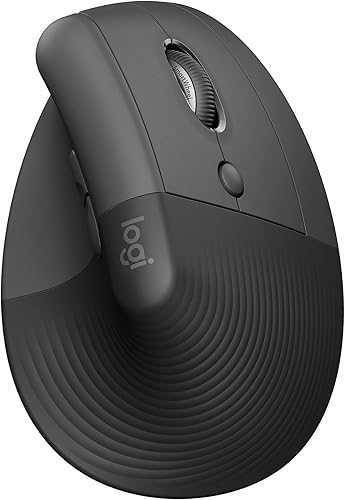
Logitech Lift
DEAS 7.7 out of 10
57-degree angle; for small to medium hands; right- and left-handed versions; one AA battery, rated for about 24 months.
For someone with no wrist injury who wants to keep it that way, this is the easy start: a fixed 57-degree angle takes much of the twist out of your forearm without feeling extreme, and it's priced so a first vertical mouse isn't a gamble. If your hands are large, the  MX Vertical is the bigger version.
Good: sized for small to medium hands; a gentle 57-degree angle; the best reliability score of our top mice; right and left versions. Less good: a fixed angle; too small for large hands; a 1-year warranty in the US.
Score breakdown
Clinical performance7.4
I.1Neutral posture support8.5
I.2Adjustability range6.5
I.3Injury risk reduction8.0
I.4Population accommodation5.5
I.5Wrist neutral and grip position8.5
Product quality5.8
II.1Material & construction6.5
II.2Published certification3.0
II.3Warranty vs benchmark5.0
II.4Verified user reliability8.5
Market value8.0
III.1Price vs category benchmark8.0
III.2Ergonomic value ratio8.0
Composite 7.7 on the DEAS (Desk Ergonomics Assessment Score). How we score
Cause 4 of 5
Your wrists bend back while you type
It feels like an ache across the back of the wrist and a tight band along the top of the forearm by the end of a typing-heavy day. It builds so slowly that most people don't connect it to the keyboard until it's been there for months.
The same 2008 review reported the wrist bent back about 24 degrees on average during keyboard use.6 In a lab study of people typing, carpal tunnel pressure was lowest with the wrist near neutral and climbed as it bent back, roughly doubling by 45 degrees; the authors' advice was to keep extension under 30 degrees.11 The usual culprit is a keyboard propped up on its back feet, which tilts the keys toward you. OSHA's guidance is not to use the feet if they bend your wrists up,12 and in a lab comparison, keyboards flat to slightly tilted away from you gave the least wrist extension.13
That's where palm support comes in, used the right way. OSHA's guidance is that your hands should move freely above the rest while you type, and that when you pause, the pad should meet the heel of your palm, not your wrist.14 A rest at the height of the keys gives your hands somewhere level to land between bursts. Keep expectations honest: a Cochrane review found too little high-quality evidence to call any keyboard a treatment for carpal tunnel syndrome, and its two keyboard trials were small and split, one finding less pain at 12 weeks and the other no difference at six months.15
The fix
Keyboard at elbow height, flat or tilted slightly away from you, with its back feet folded. A split keyboard lets each hand line up with its shoulder, and a palm rest at key height gives your hands a level place to pause.

The split I recommend first
Cloud Nine C989M
DEAS 7.7 out of 10
Two halves that separate up to 6 inches; a built-in 7-degree tent; full size with a number pad; Kailh Box mechanical switches; molded palm rests.
A true split you can pull apart to your shoulder width, with a gentle built-in tent and molded palm rests at the height of the keys, so the palm support comes in the box. It ties for our top keyboard score, and the familiar layout means you're not relearning to type.
Good: halves that separate up to 6 inches; palm rests built in; a number pad; one of the best price scores of our top keyboards. Less good: the tent is fixed at 7 degrees; a large footprint; too few user reviews yet for a reliability score.
Score breakdown
Clinical performance7.8
I.1Neutral posture support8.5
I.2Adjustability range7.5
I.3Injury risk reduction8.0
I.4Population accommodation6.5
I.5Wrist neutral and key actuation8.5
Product quality4.7
II.1Material & construction7.0
II.2Published certification2.0
II.3Warranty vs benchmark5.0
Market value6.0
III.1Price vs category benchmark6.0
III.2Ergonomic value ratio6.0
Composite 7.7 on the DEAS (Desk Ergonomics Assessment Score). How we score

For established symptoms
Kinesis Advantage360
DEAS 7.6 out of 10
Contoured key wells in two separate halves, 15.25 to 21.25 inches apart (wired); three tent settings; a wireless Pro version. 3-year warranty.
Contoured key wells bring the keys to your fingers, in two halves you set to your shoulder width and tent at three heights. For people who type all day and already hurt, it's worth the learning period, and it's the contoured one to buy now that the  Advantage2 is winding down.
Good: fully separate halves for any shoulder width; three tent settings; a wireless version; a 3-year warranty. Less good: among the lowest keyboard price scores, from $499 at list; a real learning period.
Score breakdown
Clinical performance8.8
I.1Neutral posture support9.5
I.2Adjustability range9.0
I.3Injury risk reduction9.0
I.4Population accommodation7.0
I.5Wrist neutral and key actuation9.5
Product quality5.0
II.1Material & construction8.0
II.2Published certification2.0
II.3Warranty vs benchmark5.0
Market value1.2
III.1Price vs category benchmark1.0
III.2Ergonomic value ratio1.5
Composite 7.6 on the DEAS (Desk Ergonomics Assessment Score). How we score
Cause 5 of 5
You reach for the keyboard and mouse
If a massage therapist has ever told you your upper trapezius is unusually tight, look at how far away your keyboard and mouse sit. With both at the back of the desk, your elbows drift away from your body and your shoulders hold your arms up all day. It shows up as neck stiffness, knots across the upper back and shoulder tightness that stretching doesn't shift.
OSHA's guidance is to keep the mouse close to the keyboard, and to consider a keyboard without a number pad to leave room for it.9 In a small lab study, moving the mouse in beside a keyboard without a number pad lowered activity in the front and middle of the shoulder, though not in the trapezius.16 Support matters as much as position: in a lab study of shoulder angles from 0 to 60 degrees, supporting the forearm cut upper trapezius and front shoulder muscle activity at every angle,17 and in a one-year trial of 182 call-center operators, a wide forearm support plus ergonomics training roughly halved the risk of a diagnosed neck or shoulder disorder compared with training alone.18
The fix
Keep the keyboard and mouse side by side, in your primary work zone where you can reach them easily,19 with your elbows close to your body and your forearms supported. A keyboard tray brings both in and down; a sit-stand desk lowers the whole surface.

To bring both in and down
Humanscale 6G Keyboard Tray System
DEAS 8.0 out of 10
Tilts away from you to -15 degrees with a dial; 1.75 inches above to 5.25 inches below its 22-inch track. A 25-inch board with a foam palm rest.
This is the tray I install in clinical settings. It pulls the keyboard and mouse in under your shoulders, drops them to your elbows and tilts the board slightly away from you, which fixes the reach, the height and the wrist angle in one go without a new desk.
Good: the top tray score and the best clinical scores; tilts to -15 degrees; a 15-year warranty. Less good: priced far above the category benchmark; keyboard and mouse share the 25-inch board, with no separate mouse platform; the track needs about 22 inches of depth under the desk.
Score breakdown
Clinical performance8.6
I.1Neutral posture support9.0
I.2Adjustability range8.0
I.3Injury risk reduction9.0
I.4Population accommodation8.0
I.5Negative tilt and wrist neutral9.0
Product quality8.7
II.1Material & construction9.0
II.2Published certification8.0
II.3Warranty vs benchmark9.0
Market value3.0
III.1Price vs category benchmark2.0
III.2Ergonomic value ratio4.0
Composite 8.0 on the DEAS (Desk Ergonomics Assessment Score). How we score
Tray or desk?
If you can only buy one, the tray fixes this specific reach for less. A height-adjustable desk fixes the height of everything and adds standing, so if the budget allows, it does more.
Which cause is your pain?
Lower back pain and tight hips
Feels like
Worse as the day goes on, stiff when you stand up.
What helps
Height first (Cause 1), then a recline you can hold (Cause 2).
Wrist and forearm ache
Feels like
Usually a mix of a palm-down mouse, wrists bent back on the keys and a flicking wrist.
What helps
Start with the mouse (Cause 3), then the keyboard (Cause 4).
Neck stiffness and tight traps
Feels like
Knots across the upper back that come back by midweek.
What helps
Bring the keyboard and mouse in under your shoulders (Cause 5).
When to see a doctor
Pain that is sharp, keeps you up at night, runs down an arm or a leg, or comes with numbness, tingling or weakness needs a clinician before it needs equipment.
Go deeper by where it hurts
Each of these takes one body area and works through its five causes in detail.
Set it up in this order
Each step is the reference point for the next, so the order matters.
- 1
Set the chair height. Sit all the way back. Thighs roughly level, feet flat on the floor or a footrest, not dangling.1
- 2
Set the lumbar support. It should meet the inward curve of your lower back with steady contact, not only when you press into it.
- 3
Set the recline. Let the backrest go back so your torso sits about 105 to 120 degrees from your thighs,1 with the tension set so it holds you without effort.
- 4
Set the desk or tray to your elbows. Shoulders relaxed, upper arms at your sides, elbows bent 90 to 120 degrees.1 The keys sit at or just below elbow height.
- 5
Bring the keyboard and mouse in. Side by side, close enough that your elbows stay near your body.9
- 6
Set the monitor. Top edge level with your eyes, about an arm's length away. On a laptop, raise the screen on a stand and add a separate keyboard and mouse.
- 7
Check it after 30 minutes. Sit naturally, not "correctly." If your shoulders are up, the keyboard is too high; if your chin pokes forward, the screen is too low.
The test
A setup that's right takes no effort to hold. If you have to hold yourself in position, the setup is compensating for an equipment problem, not correcting it.
What matters when you buy, and what's overstated
What matters
For desks: a height range that reaches your seated and standing elbow heights, and a frame that stays steady at your standing height. For chairs: a backrest that reclines and holds, lumbar support you can move to the small of your back, and armrests that reach your forearms. For keyboards: whether it lets your wrists stay level and your hands line up with your shoulders. For mice: whether it fits your hand and turns it toward a handshake.
What's overstated
Lumbar cushions on chairs that don't recline: they change where the chair touches your back, not how the chair moves. Wrist rests used while you type: they're for the pauses.14 And "ergonomic" mice that are just wider or have a thumb groove: if your hand stays palm-down, the forearm stays twisted.
The red flag I see most
A keyboard propped up on its back feet tilts the keys toward you and bends your wrists back with every keystroke. It's how most keyboards come out of the box. Fold the feet, or use a tray that tilts the keyboard slightly away from you.12,13
Common questions
Do I need to fix all five at once?
No, and trying to makes it harder to tell what's working. Start with the cause that matches your pain, fix it, and give it two to three weeks. For most people the height (Cause 1) comes first, because the others build on it: fix the mouse before the desk height and you'll often end up fixing it twice.
Are wrist rests helpful or harmful?
Helpful, used for the pauses. OSHA's guidance is that your hands should move freely above the rest while you type, with the pad meeting the heel of your palm when you stop.14 A split keyboard with built-in palm rests covers it, or for a standalone rest, the  Fellowes PlushTouch (DEAS 6.1),
  Gorilla Grip (6.0) and
  Kensington ErgoSoft (6.0) all rank in our top four of 20.
Do I need a standing desk?
No. A sit-stand desk solves the height problem more completely than a fixed desk, but a fixed desk with a keyboard tray at your seated elbow height gets most of the same benefit for less. What a sit-stand desk adds is an easy way to change position through the day.
How long before I feel a difference?
In my experience, end-of-day stiffness and shoulder tension often ease within the first week. Established wrist or lower back problems take three to six weeks of a consistent setup. If the pain is severe or comes with tingling, numbness or pain running down a limb, see a clinician before you change equipment.
What else did you score?
Desks: the 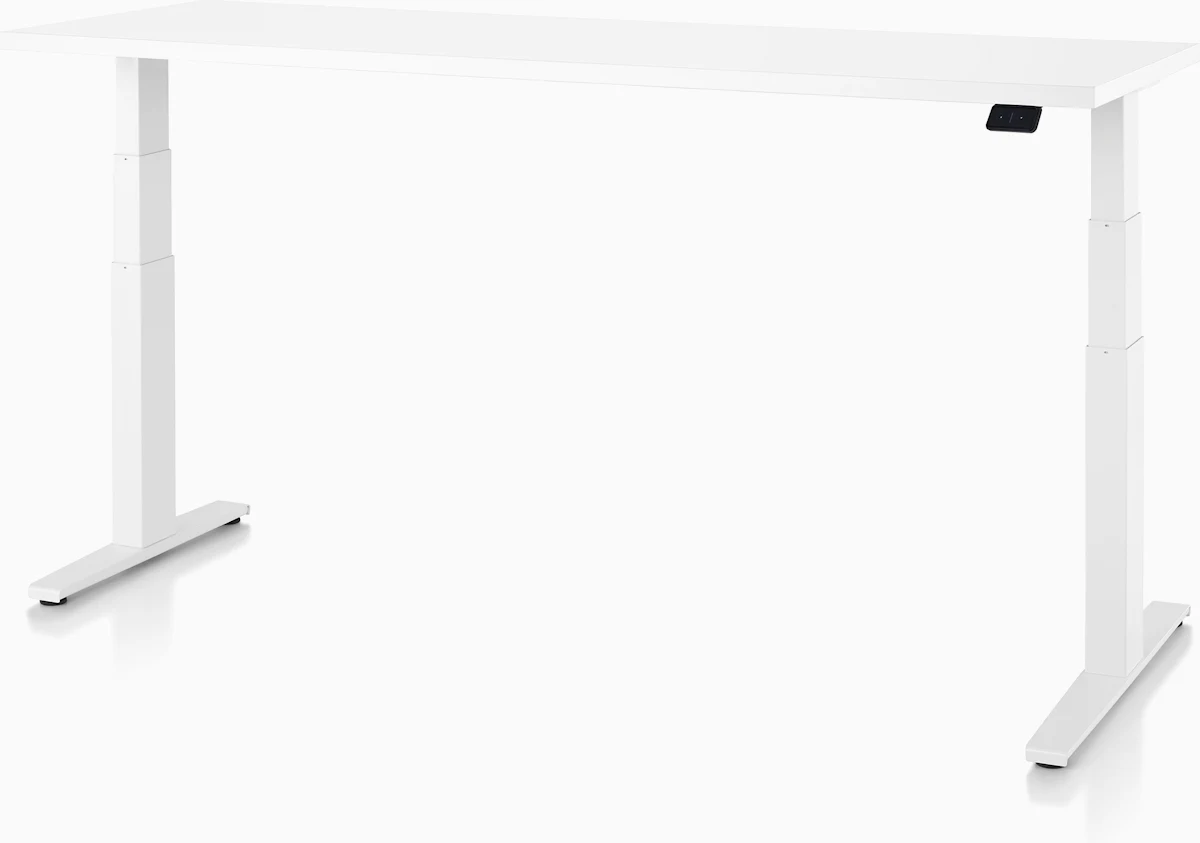 Herman Miller Motia (DEAS 7.8) has the best build quality, and the
  Desky Dual Laminate (7.7) and
  Vari Electric (7.3) are strong alternatives. Chairs: the
  Herman Miller Embody (8.6) ties the Gesture and
  Aeron, with a back that flexes with your spine, and the
  Haworth Fern (8.2) suits people who move a lot. Mice: the Logitech MX Vertical (7.4) for larger hands, the
  Evoluent VerticalMouse 4 (7.1), the
  Anker Vertical (6.8), and the
  Logitech MX Ergo S (7.0), a trackball that keeps your arm still, which helps if moving the mouse is what hurts. Keyboards: the
  Kinesis mWave (7.7),
 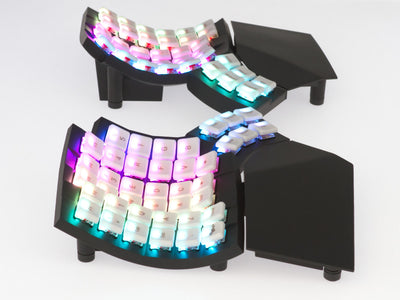 Glove80 (7.6),
 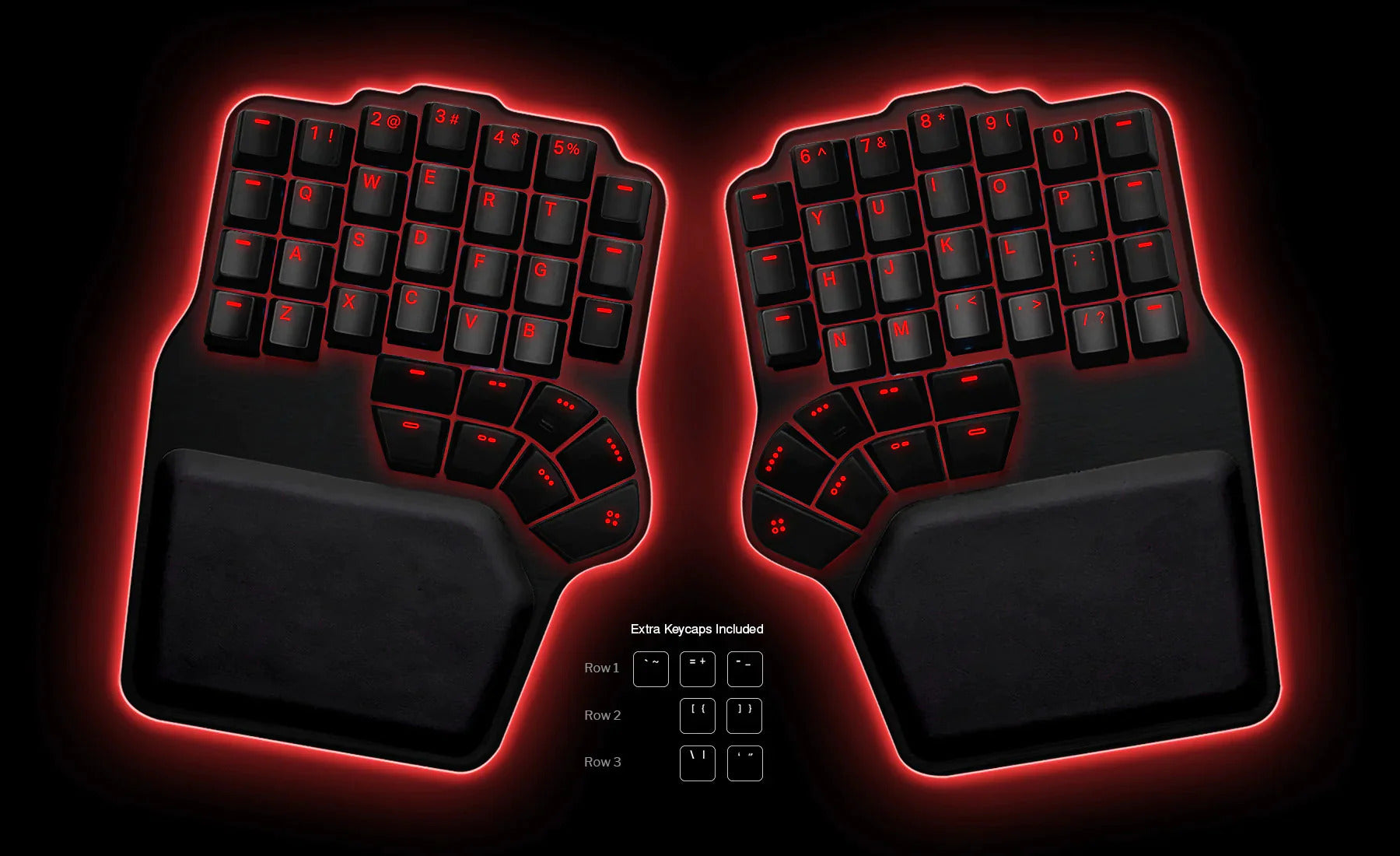 Dygma Defy (7.5),
  Perixx PERIBOARD-835BR (7.4),
  R-Go Split (7.4),
 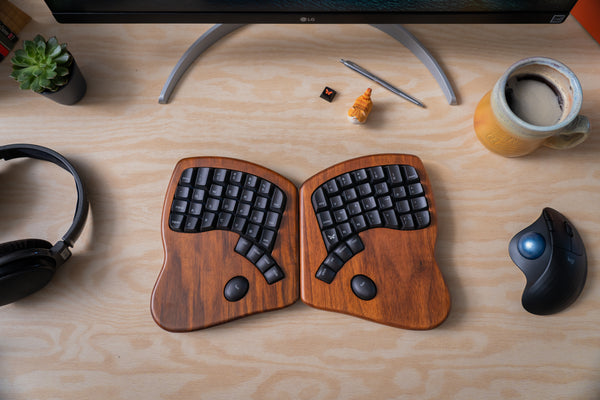 Keyboardio Model 100 (7.4) and
  Logitech ERGO K860 (7.3). Footrests: the
  Humanscale FR500 and
  ErgoFoam Adjustable (both 7.0), and on a budget, the
  HUANUO Adjustable and
  3M Adjustable (both 6.5).
Should I add a keyboard tray if I already have a sit-stand desk?
Possibly. Set the desk to your seated elbow height and the monitors on it often end up too low. A tray lets you set the desk for the screens and the keyboard separately. If your monitors are on arms, you can usually set the desk low enough to skip the tray.
What is the DEAS score?
The Desk Ergonomics Assessment Score, our rating out of 10. It weighs clinical performance, product quality and value, and each category is scored against its own benchmark, so compare scores within a category, not across them. Tap Score breakdown on any card for the detail. How we score.
References
- OSHA. Computer Workstations eTool: neutral working postures. osha.gov
- OSHA. Computer Workstations eTool: chairs. osha.gov
- Marcus M, Gerr F, Monteilh C, Ortiz DJ, Gentry E, Cohen S, Edwards A, Ensor C, Kleinbaum D. A prospective study of computer users: II. Postural risk factors for musculoskeletal symptoms and disorders. Am J Ind Med. 2002;41(4):236–249. PMID: 11920967. doi:10.1002/ajim.10067
- Cho M, Han JS, Kang S, et al. Biomechanical effects of different sitting postures and physiologic movements on the lumbar spine: a finite element study. Bioengineering. 2023;10(9):1051. doi:10.3390/bioengineering10091051
- Andersson BJG, Örtengren R, Nachemson A, Elfström G. Lumbar disc pressure and myoelectric back muscle activity during sitting. I. Studies on an experimental chair. Scand J Rehabil Med. 1974;6(3):104–114. PMID: 4417801. PubMed
- Thomsen JF, Gerr F, Atroshi I. Carpal tunnel syndrome and the use of computer mouse and keyboard: a systematic review. BMC Musculoskelet Disord. 2008;9:134. PMID: 18838001. doi:10.1186/1471-2474-9-134
- Keir PJ, Bach JM, Hudes M, Rempel DM. Guidelines for wrist posture based on carpal tunnel pressure thresholds. Hum Factors. 2007;49(1):88–99. PMID: 17315846. PubMed
- Oude Hengel KM, Houwink A, Odell D, van Dieën JH, Dennerlein JT. Smaller external notebook mice have different effects on posture and muscle activity. Clin Biomech (Bristol). 2008;23(6):727–734. PMID: 18348899. doi:10.1016/j.clinbiomech.2008.01.013
- OSHA. Computer Workstations eTool: pointer/mouse. osha.gov
- Quemelo PRV, Vieira ER. Biomechanics and performance when using a standard and a vertical computer mouse. Ergonomics. 2013;56(8):1336–1344. PMID: 23777482. doi:10.1080/00140139.2013.805251
- Rempel DM, Keir PJ, Bach JM. Effect of wrist posture on carpal tunnel pressure while typing. J Orthop Res. 2008;26(9):1269–1273. PMID: 18383144. doi:10.1002/jor.20599
- OSHA. Computer Workstations eTool: keyboards. osha.gov
- Rempel D, Nathan-Roberts D, Chen BY, Odell D. The effects of split keyboard geometry on upper body postures. Ergonomics. 2009;52(1):104–111. PMID: 19308823. doi:10.1080/00140130802481040
- OSHA. Computer Workstations eTool: wrist/palm supports. osha.gov
- O'Connor D, Page MJ, Marshall SC, Massy-Westropp N. Ergonomic positioning or equipment for treating carpal tunnel syndrome. Cochrane Database Syst Rev. 2012;(1):CD009600. PMID: 22259003. doi:10.1002/14651858.CD009600
- Cook CJ, Kothiyal K. Influence of mouse position on muscular activity in the neck, shoulder and arm in computer users. Appl Ergon. 1998;29(6):439–443. PMID: 9796789. doi:10.1016/S0003-6870(98)00008-8
- Gonçalves JS, et al. The effects of forearm support and shoulder posture on upper trapezius and anterior deltoid activity. J Phys Ther Sci. 2017. PMID: 28603347. PubMed
- Rempel DM, Krause N, Goldberg R, Benner D, Hudes M, Goldner GU. A randomised controlled trial evaluating the effects of two workstation interventions on upper body pain and incident musculoskeletal disorders among computer operators. Occup Environ Med. 2006;63(5):300–306. oem.bmj.com
- OSHA. Computer Workstations eTool: desks. osha.gov
This article is general education, not medical advice. Pain that is severe, keeps you up at night, runs down an arm or a leg, or comes with numbness, tingling or weakness needs a licensed clinician.
AJ Prince, HEAS
Healthcare Ergonomic Assessment Specialist. Conducts over a thousand workstation assessments a year across a multi-campus health system, and authored the DEAS standard used to rank every product on this site.
